

Knowledge Library Procedure Guide
This procedure guide explains how to use the Knowledge Library feature to access, organize, and manage documents across your projects. The Knowledge Library consolidates all project knowledge into a unified, searchable interface, providing access to both personal documents and bulk-uploaded project documentation.
Table of Contents
Section titled “Table of Contents”- Accessing the Knowledge Library
- Understanding the Knowledge Library Interface
- Browsing Documents
- Searching for Documents
- Filtering Documents
- Sorting Documents
- Favoriting Documents
- Viewing Document Previews
- Key Features Summary
- Best Practices
- Troubleshooting
- Security Notes
Accessing the Knowledge Library
Section titled “Accessing the Knowledge Library”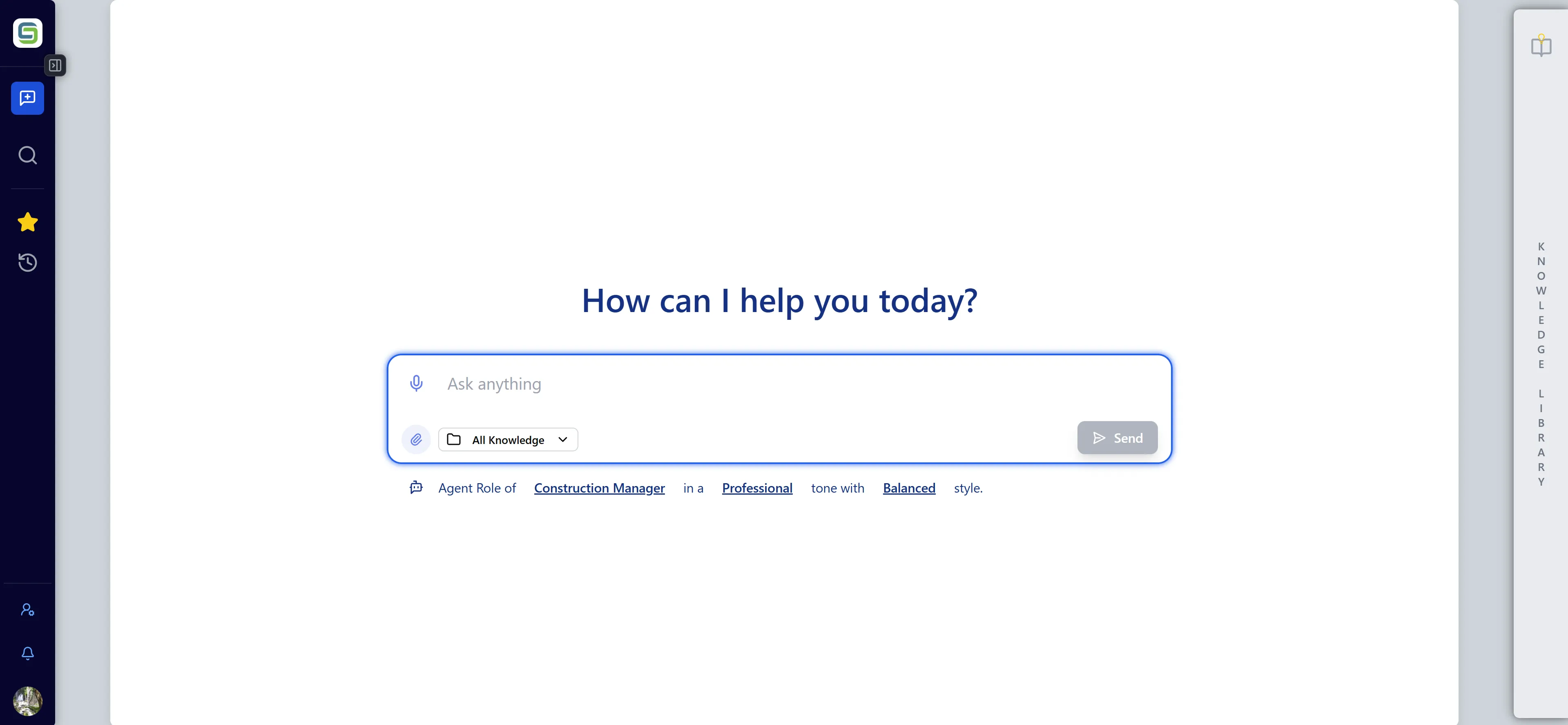
Step 1: Locate the Knowledge Library Sidebar
Section titled “Step 1: Locate the Knowledge Library Sidebar”- Log in to the application
- Navigate to the Chat interface
- The Knowledge Library is accessible via the right sidebar of the chat interface
- Look for the Book/Lightbulb icon in the sidebar area
Step 2: Open the Knowledge Library
Section titled “Step 2: Open the Knowledge Library”- Click the Knowledge Library icon (Book/Lightbulb icon) to open the sidebar
- The sidebar will expand from the right side of the screen
- You can also use keyboard shortcuts if configured
Step 3: Understanding the Sidebar Layout
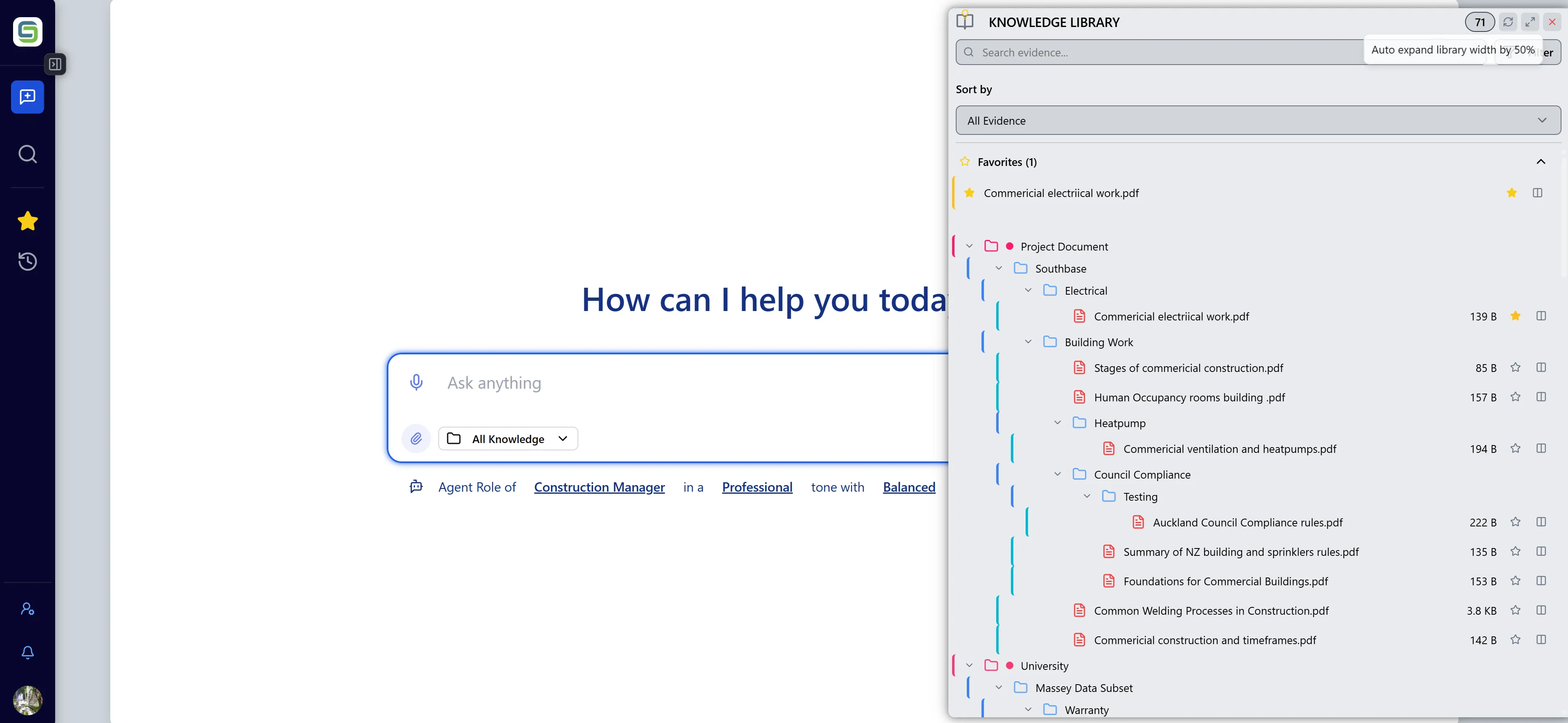
Section titled “Step 3: Understanding the Sidebar Layout”The Knowledge Library sidebar consists of several sections:
- Header Section: Contains search, filters, and refresh controls
- Favorites Section: Displays your favorited documents (if any)
- Main Document Tree: Shows all available documents organized hierarchically
- Document Viewer: Appears when a document is selected for preview
Understanding the Knowledge Library Interface
Section titled “Understanding the Knowledge Library Interface”Header Controls
Section titled “Header Controls”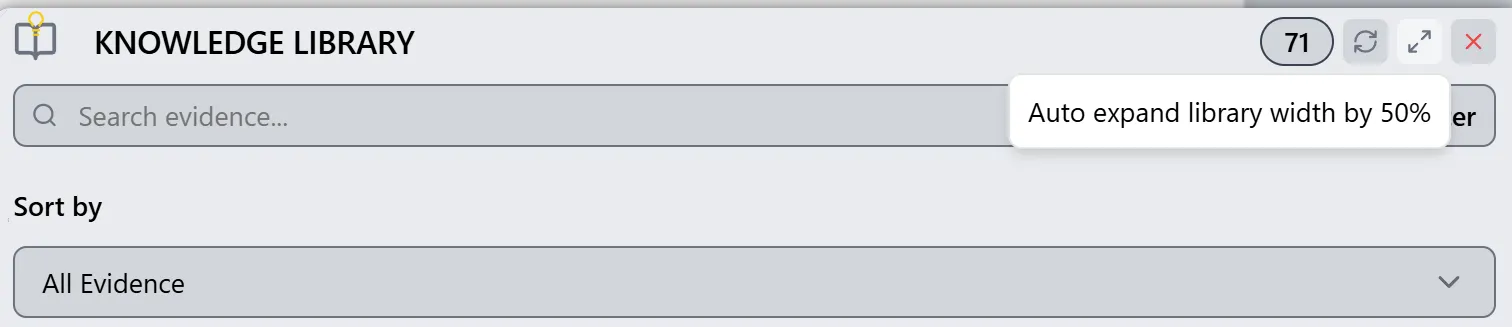
The header section contains:
- Search Bar: Located at the top, allows you to search for documents by name, content, or tags
- Filter Dropdown: Provides options to filter by project, document type, or source
- Sort Dropdown: Allows you to organize documents by different criteria
- Refresh Button: Reloads the document list from the server
- Minimize/Maximize Button: Collapses or expands the sidebar
Document Tree Structure
Section titled “Document Tree Structure”The main document tree displays documents in a hierarchical structure:
- Folders: Represent projects, document types, or date groups
- Files: Individual documents with file type icons
- Expandable Nodes: Click to expand/collapse folders
- Color Coding: Different colors indicate document types or sources
Document Icons
Section titled “Document Icons”Documents are displayed with icons indicating their type:
- 📄 Document Icon: PDFs, Word documents, text files
- 🖼️ Image Icon: Image files
- 📊 Chart Icon: Data visualization files
- 🔗 Link Icon: External links or references
Browsing Documents
Section titled “Browsing Documents”Step 1: Navigate the Document Tree
Section titled “Step 1: Navigate the Document Tree”- The document tree is organized hierarchically based on your selected sort option
- Click on folder icons (chevron right/down) to expand or collapse folders
- Folders may represent:
- Projects: Documents grouped by project
- Document Types: Documents grouped by file type
- Sources: Documents grouped by upload source
- Dates: Documents grouped by date added

Step 2: Expand and Collapse Folders
Section titled “Step 2: Expand and Collapse Folders”- To expand a folder: Click the chevron icon (▶) next to the folder name
- To collapse a folder: Click the chevron icon (▼) next to the folder name
- You can expand multiple folders simultaneously
- The tree remembers your expansion state while browsing
Searching for Documents
Section titled “Searching for Documents”Step 1: Access the Search Function
Section titled “Step 1: Access the Search Function”- Locate the search bar at the top of the Knowledge Library sidebar
- The search bar has a search icon on the left side
- Click in the search input field to begin searching
Step 2: Enter Search Query
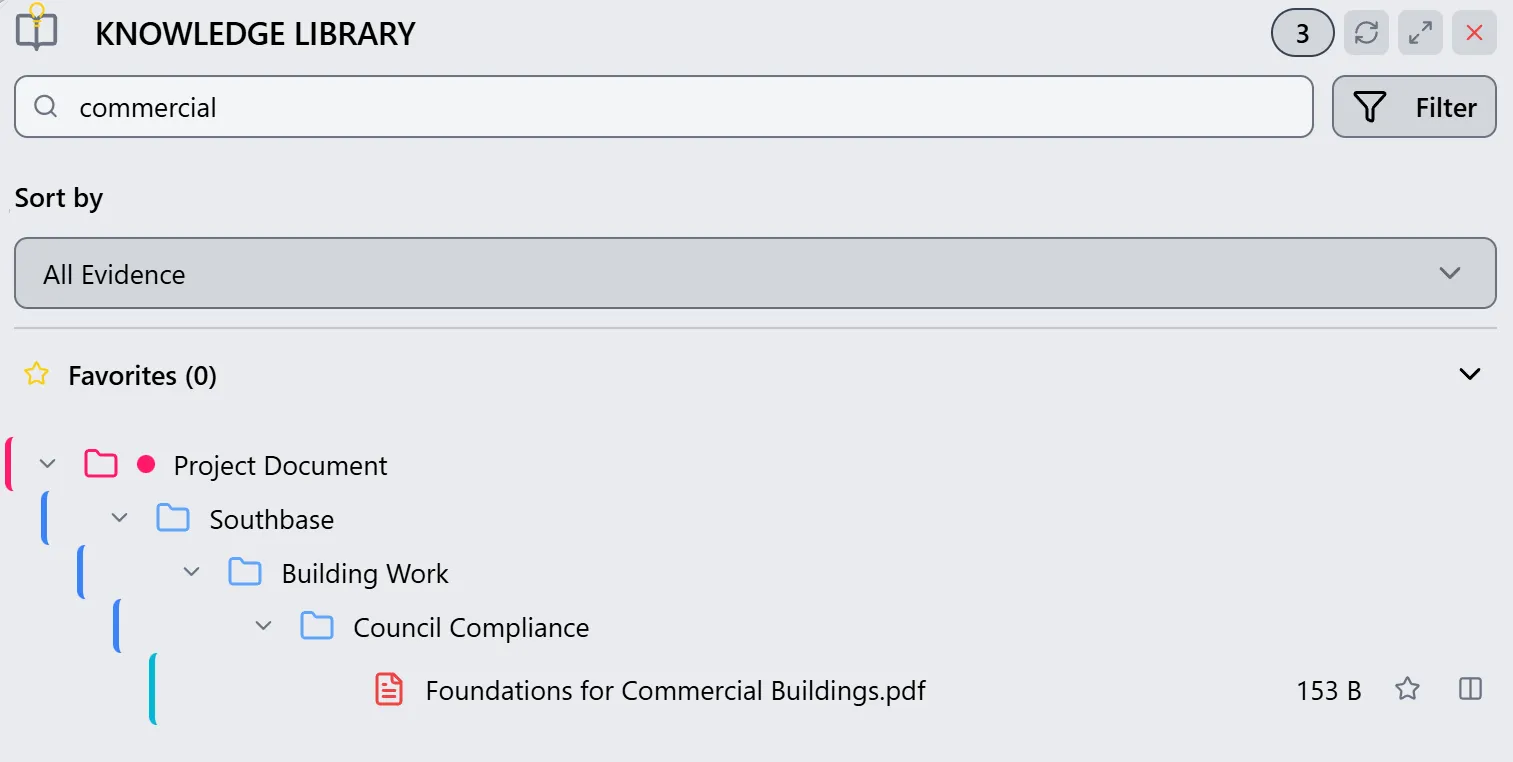
Section titled “Step 2: Enter Search Query”- Type your search terms in the search bar
- The search is case-insensitive and searches across:
- Document titles/filenames
- Document content (if indexed)
- Document tags
- Project names
- Results update in real-time as you type
Step 3: Review Search Results
Section titled “Step 3: Review Search Results”- The document tree automatically filters to show matching documents
- Matching folders are automatically expanded to show results
- Non-matching items are hidden from view
- The search highlights matching text in document names
Step 4: Clear Search
Section titled “Step 4: Clear Search”- Click the X icon in the search bar, or
- Delete all text from the search input
- The document tree will return to showing all documents
Filtering Documents
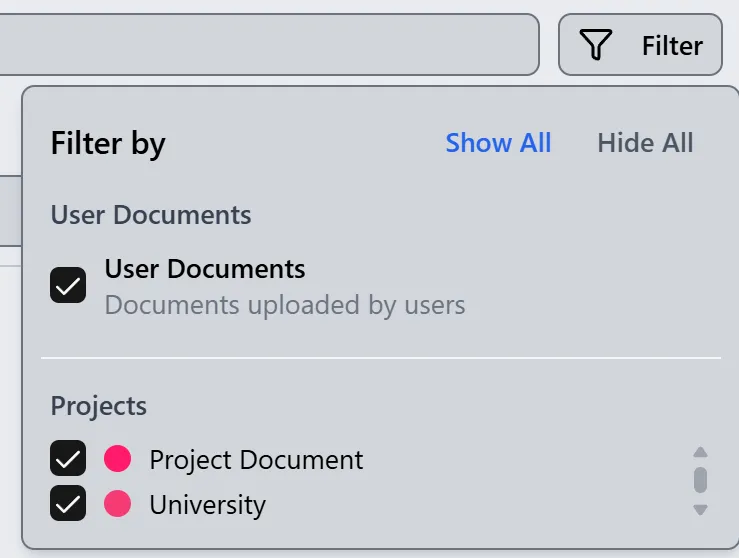
Section titled “Filtering Documents”Step 1: Access Filter Options
Section titled “Step 1: Access Filter Options”- Locate the Filter dropdown in the Knowledge Library header
- Click on the filter dropdown to see available filter options
Step 2: Filter by Project
Section titled “Step 2: Filter by Project”- In the filter dropdown, select “Project” filter
- Choose one or more projects from the list
- The document tree will update to show only documents from selected projects
- You can select multiple projects to view documents across projects
Step 3: Filter by Document Type
Section titled “Step 3: Filter by Document Type”- In the filter dropdown, select “Document Type” filter
- Available types include:
- User Upload: Documents you’ve uploaded
- Bulk Upload: System-wide documents available to all users
- Other: Additional document sources
- Select one or more types to filter
Step 4: Filter by Source
Section titled “Step 4: Filter by Source”- In the filter dropdown, select “Source” filter
- Filter documents by their upload source or origin
- This helps identify where documents came from
Step 5: Clear Filters
Section titled “Step 5: Clear Filters”- Click the “Clear Filters” button or deselect all filter options
- The document tree will return to showing all documents
Sorting Documents
Section titled “Sorting Documents”Step 1: Access Sort Options
Section titled “Step 1: Access Sort Options”- Locate the Sort dropdown in the Knowledge Library header
- Click on the sort dropdown to see available sorting options
Step 2: Sort by Category
Section titled “Step 2: Sort by Category”Available sort options include:
- All: Shows all documents (sorted by date, most recent first)
- Project: Groups documents by project
- Type: Groups documents by file type
- Source: Groups documents by upload source
- Date: Groups documents by date added
Step 3: Apply Sorting
Section titled “Step 3: Apply Sorting”- Select your desired sort option from the dropdown
- The document tree will reorganize according to your selection
- Folders will be created based on the sort category
- Documents within folders are sorted alphabetically by name
Favoriting Documents
Section titled “Favoriting Documents”Step 1: Identify Favoriteable Documents
Section titled “Step 1: Identify Favoriteable Documents”- Browse the document tree to find documents you want to favorite
- All documents can be favorited, regardless of their type or source
- Favorited documents appear in both the main tree and the Favorites section
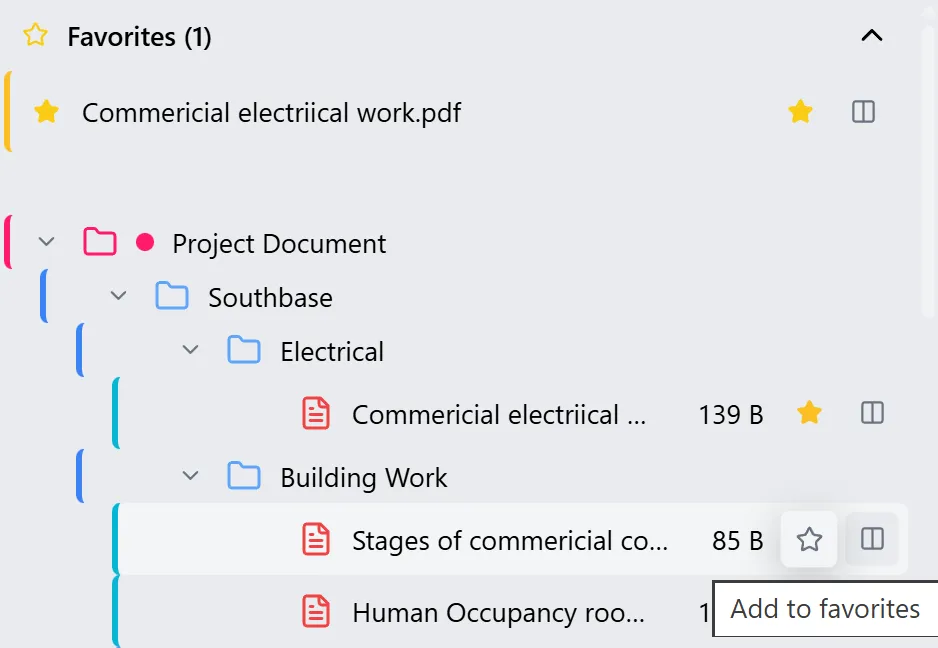
Step 2: Favorite a Document
Section titled “Step 2: Favorite a Document”- Hover over a document in the tree
- Click the star icon (⭐) that appears next to the document name
- The star will fill in (⭐) indicating the document is now favorited
- The document will automatically appear in the Favorites section at the top
Step 3: Unfavorite a Document
Section titled “Step 3: Unfavorite a Document”- Click the filled star icon (⭐) next to a favorited document
- The star will become unfilled (☆)
- The document will be removed from the Favorites section
- It will still appear in the main document tree
Step 4: View Favorited Documents
Section titled “Step 4: View Favorited Documents”- Scroll to the top of the Knowledge Library sidebar
- The Favorites section displays all your favorited documents
- Favorites are organized in an accordion that can be expanded or collapsed
- Click on a favorite to view or navigate to it
Viewing Document Previews
Section titled “Viewing Document Previews”Step 1: Access Document Preview via Compare Button
Section titled “Step 1: Access Document Preview via Compare Button”- Locate the “Compare Two Documents” button next to any document in the Knowledge Library
- The button displays a Columns icon (two vertical columns) indicating side-by-side comparison
- Hover over a document in the document tree to see the button appear
- Click the Columns icon button to open the document in the preview viewer

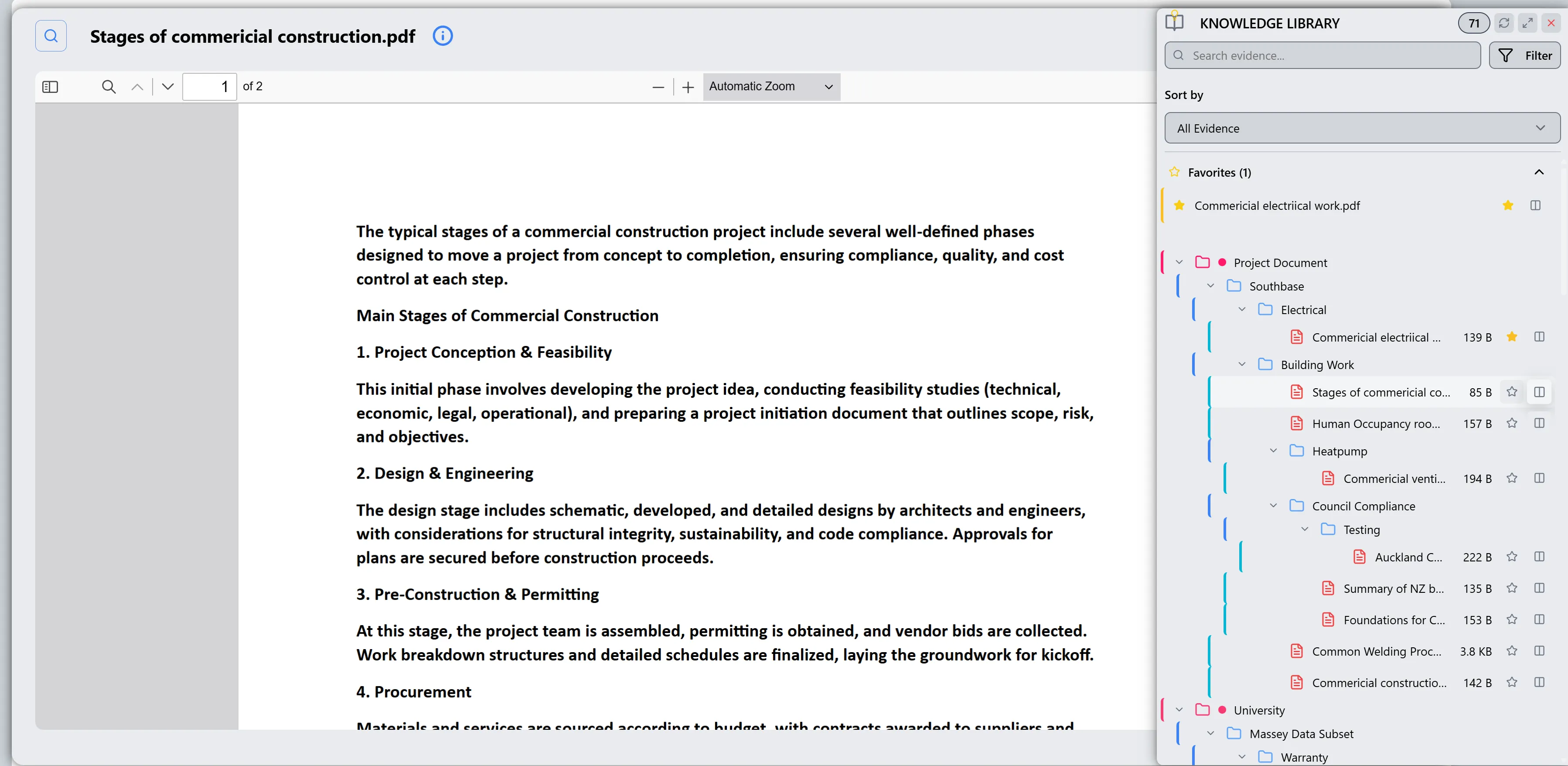
Step 2: View Single Document Preview
Section titled “Step 2: View Single Document Preview”- When you click the “Compare Two Documents” button on a document, the Document Viewer modal opens
- The viewer displays the document content based on file type:
- PDFs: Rendered using PDF.js viewer with page navigation
- Word Documents: Displayed in iframe or converted format
- Images: Displayed directly
- Text Files: Shown as formatted text
Step 3: Open Two Documents Side by Side
Section titled “Step 3: Open Two Documents Side by Side”- Click the “Compare Two Documents” button on a first document to open it in the viewer
- Click the “Compare Two Documents” button on a second document to add it side by side
- Both documents will now be displayed side by side in the viewer modal
- Each document has its own header with file details and close button
- You can scroll and navigate each document independently
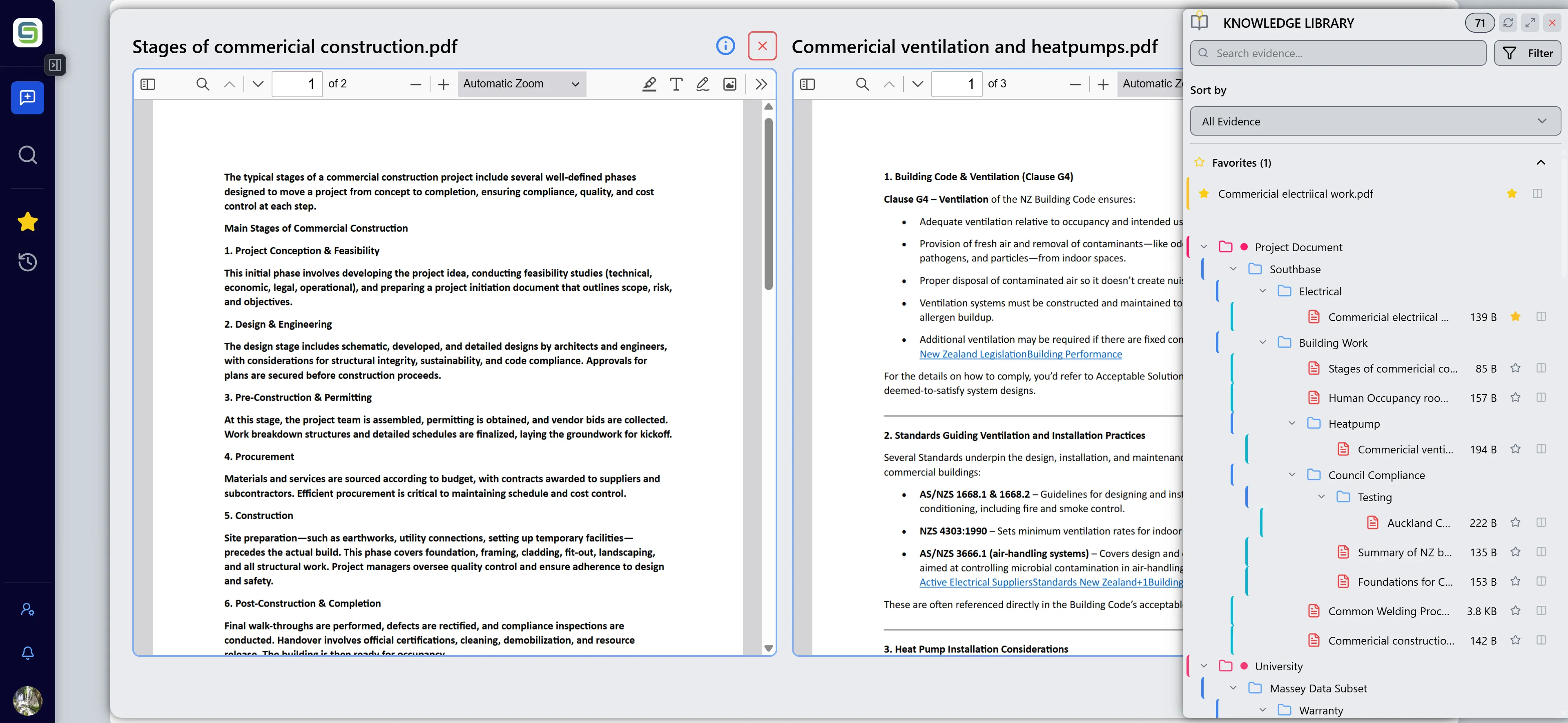
Note: The “Compare Two Documents” button will be disabled (grayed out) when you already have 2 documents open. You must close one document before opening another.
Step 4: Navigate PDF Documents
Section titled “Step 4: Navigate PDF Documents”For PDF documents, you can:
- Scroll to navigate through pages
- Use zoom controls if available in the PDF viewer
- Search within the PDF using the PDF viewer’s search function
- Navigate to specific pages if page numbers are shown
- In side-by-side mode, each PDF can be navigated independently
Step 5: Close Document Preview
Section titled “Step 5: Close Document Preview”- Close a single document: Click the X button in the document’s header
- Close all documents: Close each document individually, or close the modal
- The preview will close and return to the Knowledge Library view
- After closing, you can open new documents using the “Compare Two Documents” button again
Key Features Summary
Section titled “Key Features Summary”Document Management Features
Section titled “Document Management Features”- Unified Access: All project documents in one place
- Hierarchical Organization: Tree structure with folders and files
- Real-time Search: Instant filtering as you type
- Multiple Sort Options: Organize by project, type, source, or date
- Advanced Filtering: Filter by project, type, and source
- Favorites System: Star important documents for quick access
- Document Preview: View documents without leaving the interface
Navigation Features
Section titled “Navigation Features”- Expandable Tree: Click to expand/collapse folders
- Citation Navigation: Jump to conversations that cite documents
- Project Indicators: Visual indicators for project associations
- Document Metadata: View file size, type, and date information
Integration Features
Section titled “Integration Features”- Chat Integration: Documents used in conversations are tracked
- Project Integration: Documents filtered by selected projects
- Cross-Project Access: Access documents across multiple projects
- Bulk Upload Support: Access system-wide documents
Best Practices
Section titled “Best Practices”Organizing Documents
Section titled “Organizing Documents”- Use Favorites Wisely: Only favorite documents you frequently access
- Leverage Search: Use search instead of browsing for specific documents
- Apply Filters: Use project filters to focus on relevant documents
- Sort by Context: Change sort options based on your current task
Searching Effectively
Section titled “Searching Effectively”- Use Specific Terms: More specific search terms yield better results
- Search by Filename: If you know the filename, search for it directly
- Search by Project: Include project names in searches for project-specific documents
- Clear Search Regularly: Clear search to see all documents when needed
Managing Favorites
Section titled “Managing Favorites”- Regular Cleanup: Periodically review and unfavorite documents you no longer need
- Organize by Priority: Favorite documents you access most frequently
- Use for Quick Access: Favorites are ideal for documents you reference often
- Combine with Filters: Use favorites with filters for powerful document access
Working with Multiple Projects
Section titled “Working with Multiple Projects”- Filter by Active Projects: Select only the projects you’re currently working on
- Compare Across Projects: Use multi-project filters to compare documents
- Project-Specific Searches: Include project context in your searches
- Clear Filters When Done: Reset filters when switching between tasks
Troubleshooting
Section titled “Troubleshooting”Issue: Documents Not Appearing in Tree
Section titled “Issue: Documents Not Appearing in Tree”Solutions:
- Ensure you have selected the correct projects in the project filter
- Check that your document type filter includes the document type you’re looking for
- Clear all filters and search queries to see all documents
- Refresh the Knowledge Library using the refresh button
- Verify you have access to the projects containing the documents
Issue: Search Not Finding Documents
Section titled “Issue: Search Not Finding Documents”Solutions:
- Check your spelling and search terms
- Try searching for part of the filename instead of the full name
- Clear the search and browse manually to locate the document
- Verify the document exists in the selected projects
- Check if filters are excluding the document from results
Issue: Document Preview Not Loading
Section titled “Issue: Document Preview Not Loading”Solutions:
- Wait a few seconds for the document to load (large files take time)
- Check your internet connection
- Try refreshing the Knowledge Library
- Verify the document file is not corrupted
- For PDFs, ensure your browser supports PDF.js viewer
Issue: Favorites Not Syncing Across Devices
Section titled “Issue: Favorites Not Syncing Across Devices”Solutions:
- Ensure you’re logged into the same account on all devices
- Check that you’re in the same organization
- Wait a few moments for sync to complete
- Refresh the page to force a sync
- Contact support if favorites continue not to sync
Issue: Filters Not Working Correctly
Section titled “Issue: Filters Not Working Correctly”Solutions:
- Clear all filters and reapply them one at a time
- Verify the projects/document types you’re filtering for exist
- Check that documents match your filter criteria
- Refresh the Knowledge Library
- Try logging out and back in if issues persist
Issue: Document Tree Not Expanding
Section titled “Issue: Document Tree Not Expanding”Solutions:
- Click the chevron icon directly (not just the folder name)
- Try clicking multiple times if the first click doesn’t work
- Refresh the page if the tree seems stuck
- Check browser console for JavaScript errors
- Clear browser cache if issues persist
Security Notes
Section titled “Security Notes”- Documents are organization-scoped: You can only see documents from organizations you have access to
- Project-based access: Documents are filtered by your project permissions
- User-specific documents: Personal uploads are only visible to you
- File uploads: System-wide documents are available to all organization members